Logo

macOS Dock replacement

A macOS Dock alternative with individual window previews.

Use InfyniDock Full Dock for persistent app and window access, FloatDock for an on-demand selector, or Notch Dock for a top-of-screen tray. Keep the native Dock available while you choose the workflow that fits.

By the InfyniDock team. Guide reviewed on . Release notes · Setup guide

Current release
2.22.8
System
macOS 13+
Free trial
14 days
Lifetime license
US$12, paid once

No account required for the trial. Students can apply for a free lifetime license after verification. Pricing and student application

The problem

Which window do you want to bring forward?

The macOS Dock launches apps and offers window menus; Mission Control provides a system overview. If you repeatedly look for one browser project, Finder location, or editor window, you may prefer a selector with titles and live previews.

The InfyniDock workflow

A Dock that understands individual windows.

Choose a persistent Dock or a temporary window selector. Identify the destination by its title and preview, then activate that supported window. Add folders, Dock profiles, or saved workspaces when you need repeated access to a group of apps or windows.

What this helps with

Replace app-level switching with exact window access
Preview open windows directly from the Dock workflow
Use workspace profiles for different projects or contexts
Customize labels, icons, themes, hotkeys, and Dock behavior
Support multi-monitor and multi-Dock Mac setups
Open the Notch Dock tray from notch hover, its menu-bar icon, or a shortcut

Try a window-first Dock alongside your existing setup

Keep the native Dock available while you choose an access style. InfyniDock runs as a separate application; adopting a window selector does not require changing macOS system files.

  1. Start with a repeated task

    Open two Finder locations, two browser windows, or two editor projects you switch between during real work. Use these same windows throughout setup.

  2. Install and grant the requested permissions

    Download the official DMG and follow the setup guide. Accessibility enables supported window control; Screen Recording enables previews and Mini Window. Check two ordinary windows before testing a complex desktop.

  3. Choose one access mode

    Try FloatDock for a temporary keyboard selector, Notch Dock for a top-of-screen tray, or Full Dock for persistent app and window access. Check the configured shortcuts and avoid a combination already used by another utility.

  4. Organize only what you need

    Use a Dock folder to group related application launchers. Save a Dock profile when you want to reuse its arrangement and settings. Use a workspace for supported open-window groups and layouts.

  5. Check Spaces and external monitors

    Repeat your window-selection task on the desktops and displays you use. Make sure the target title, preview, activation, and position match your expectations before relying on the setup.

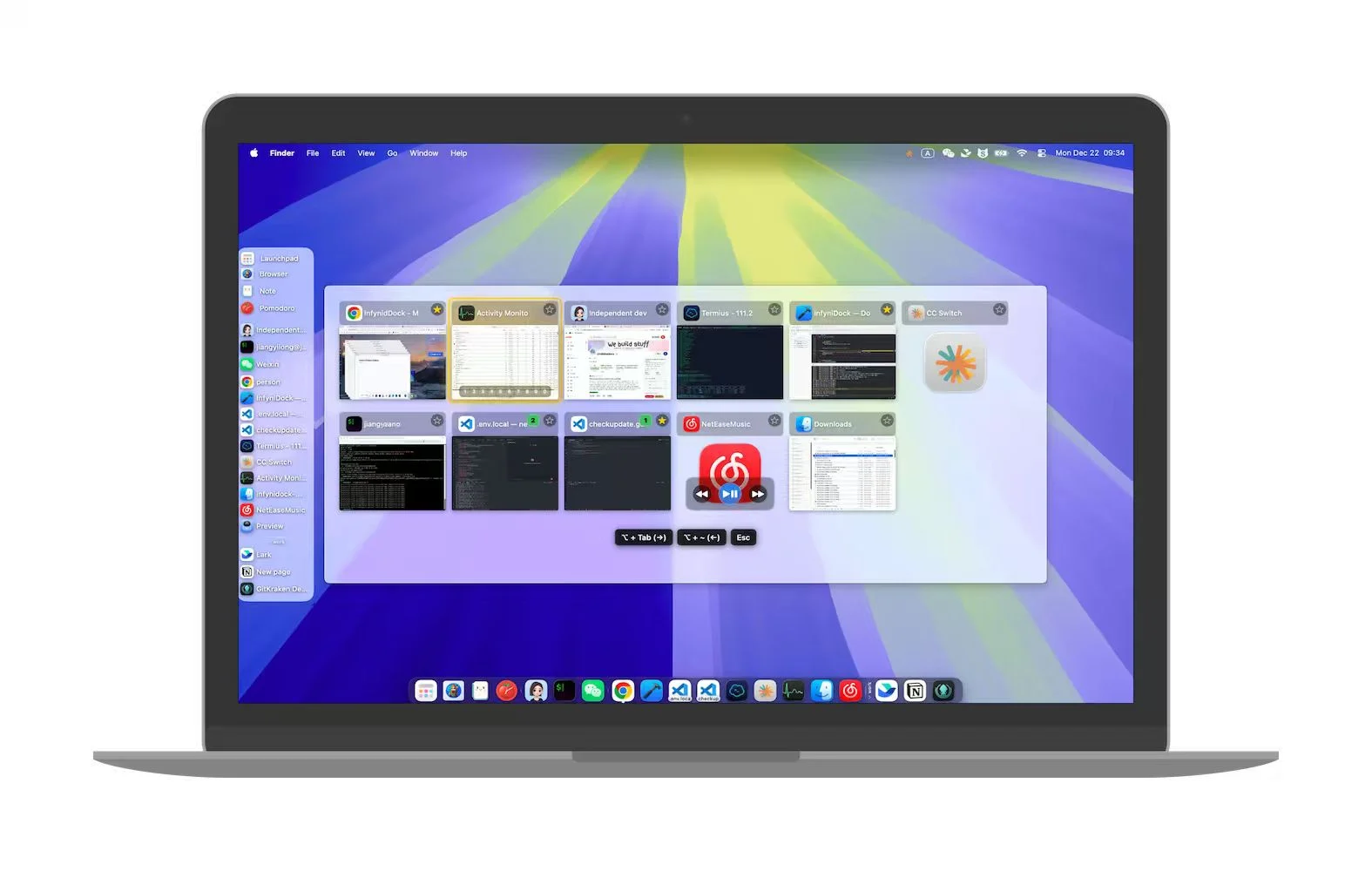
A Mac desktop with InfyniDock window previews and the native Dock still visible
The native Dock remains visible in this existing product screenshot. Start with the window selector, then add persistent Dock organization if it suits your work.

Common questions

What is a macOS Dock replacement?

A macOS Dock replacement changes or extends the default Dock workflow with more control over apps, windows, previews, organization, and customization.

Why replace the default Dock?

Some Mac users need more precise window switching, better previews, multi-display behavior, workspace profiles, or deeper customization than the native Dock provides.

Does InfyniDock still feel like a Dock?

Yes. InfyniDock keeps a Dock-centered workflow while adding window-level switching, live previews, hotkeys, workspaces, and customization.

Must I disable the native macOS Dock?

No. You can keep the native Dock and start with FloatDock or Notch Dock. Full Dock offers a persistent alternative interface, but this setup guide does not require replacing macOS system files.

Can Notch Dock work on a display without a notch?

The tray can be opened through its menu-bar icon or a configured shortcut. Physical-notch hover depends on the display; an external monitor does not need a hardware notch for those other entry points.

Do Dock profiles restore all my documents and browser tabs?

Dock profiles save Dock arrangements and settings. Workspaces group supported windows and layouts. Neither should be treated as a backup for unsaved documents or a guarantee that every app session and browser tab can be restored.