Keep the native Dock
Notch Dock
Open a top-of-screen window tray through notch hover, its menu-bar icon, or a configured shortcut. It can coexist with the native Dock.

Mac window manager
InfyniDock helps macOS users find, preview, and activate the exact window they need. Use it from the menu bar, call a floating switcher, or turn it into a full window-first Dock.
By the InfyniDock team. Guide reviewed on . Release notes · Setup guide
No account required for the trial. Students can apply for a free lifetime license after verification. Pricing and student application
Choose the shape that fits
Some users want to keep the native Dock. Some want a temporary switcher. Some want a full replacement-style Dock. InfyniDock now supports all three, so the product can feel like a companion instead of an obligation.
Keep the native Dock
Open a top-of-screen window tray through notch hover, its menu-bar icon, or a configured shortcut. It can coexist with the native Dock.
Call it when needed
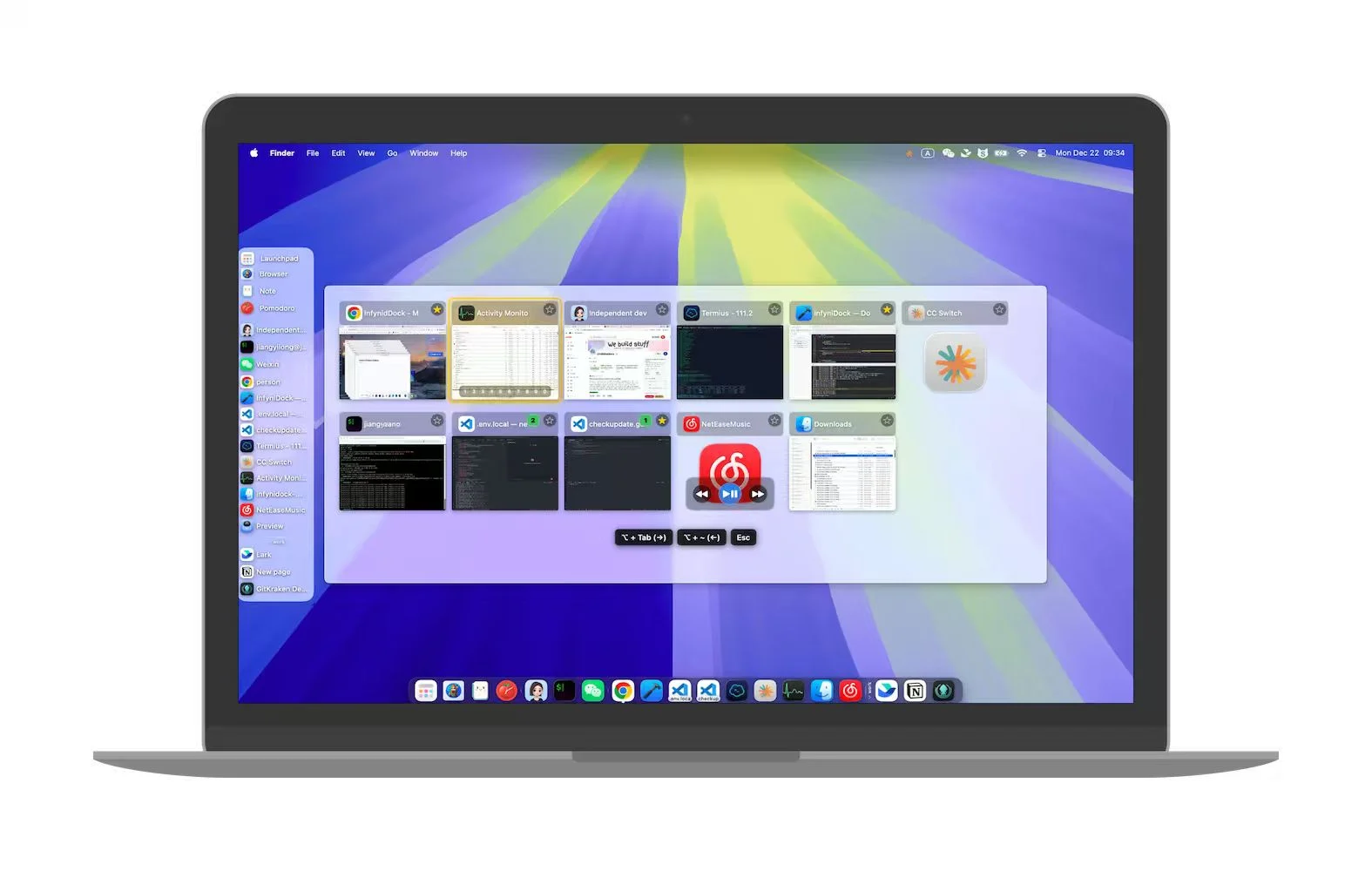
Use a shortcut, gesture, or mouse-wheel workflow to open a floating visual switcher and jump to the current, previous, or next window.
Make windows first-class
Use InfyniDock as a window-first Dock when your work depends on many browser, editor, Finder, chat, and document windows.
Start with a browser window for documentation and another for a dashboard, two VS Code projects, or two Finder locations. Give each window recognizable content before adding more windows or displays.
Use ordinary application windows, not two tabs inside one browser window. Open a different project, page, or folder in each so that the title and preview identify the destination.
Allow Accessibility for window control and Screen Recording for live previews. Follow the macOS prompt if it asks you to restart InfyniDock after granting access.
Reveal previews from the Full Dock, open your configured FloatDock shortcut, or open the Notch Dock tray. Inspect the window title and thumbnail, then select the window you want.
After the same-desktop check works, move one of the windows to another Space using Mission Control. Select that window again and check that macOS brings you to the intended desktop and window.
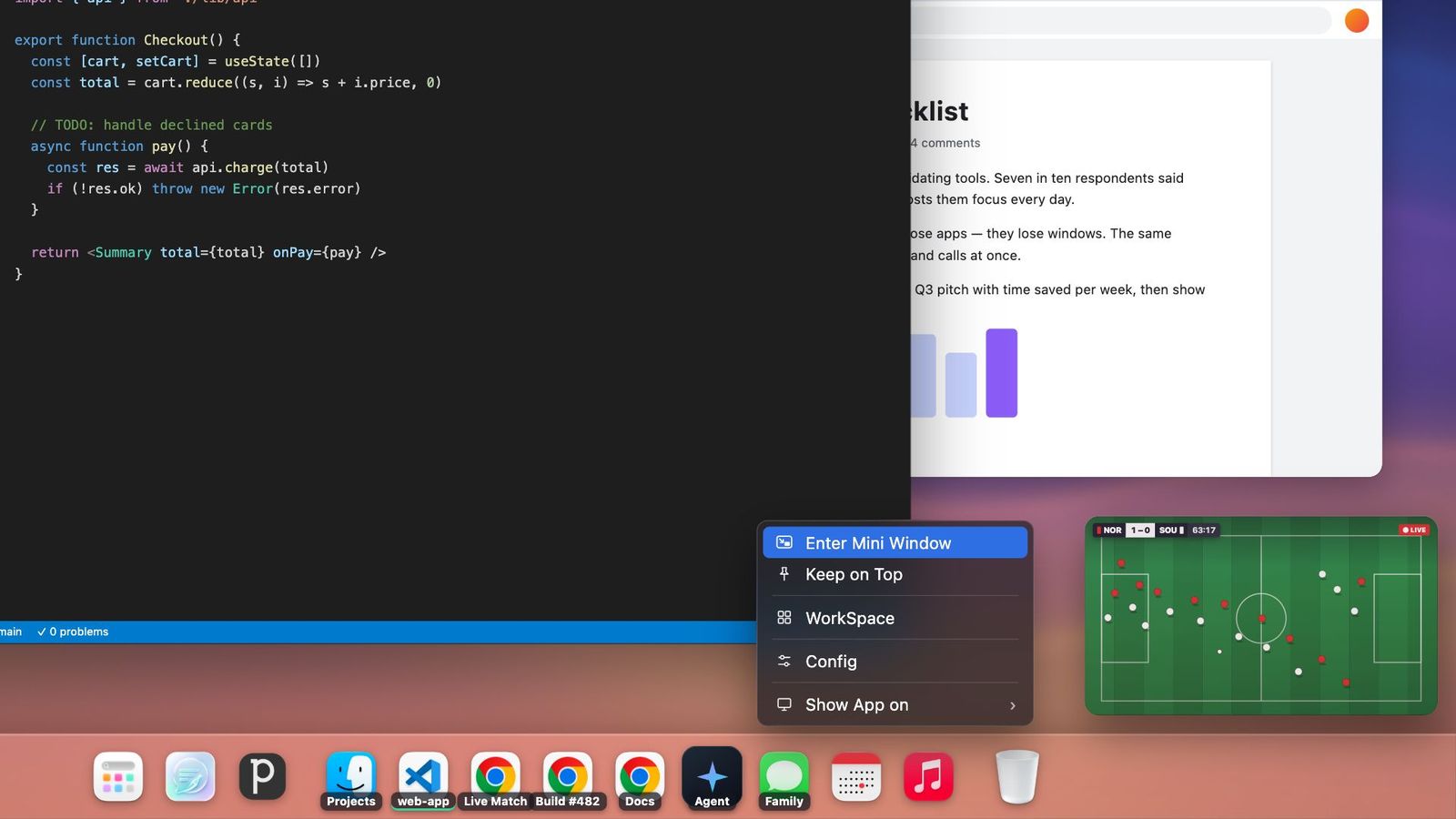
Mini Window turns a supported window into a small live panel. Use it to watch a build, a reference, or a chat while you work in another application, including a full-screen editor or presentation.
Open a supported reference window and make sure live previews work. Mini Window uses the same Screen Recording permission as the previews.
Press Control-Option-M, or right-click its entry in the InfyniDock Dock and choose Enter Mini Window. A Dock preview also has a Mini Window button. The shortcut can be changed in Settings → Shortcuts.
Switch to your editor, video, or presentation and try its full-screen mode. Drag the panel to a useful location and resize it from the corner.
Clicking brings the original window forward. The mini panel hides while that source window is active and reappears when you switch away. Close the panel or press the shortcut again to exit Mini Window.
Comparison context
InfyniDock is not just a launcher and not just a tiling utility. Its strongest job is repeated window retrieval: finding the exact browser, code, Finder, document, chat, or dashboard window that belongs to the current task.
Launches apps and provides an app's window menu. Mission Control adds a system overview. Try these built-in controls before choosing another interaction for repeated window selection.
Great for keyboard-first users. InfyniDock adds a visible Dock or menu-bar surface, live previews, and workspace-oriented window access.
Useful for visual overview. InfyniDock focuses on repeated exact switching, where the user already knows which window they want.
Great for arranging windows. InfyniDock focuses on finding, previewing, activating, and restoring the right window context.
A Mac window manager helps users organize, find, switch, move, or restore windows. Some tools focus on tiling and resizing. InfyniDock focuses on exact window switching, previews, workspaces, and Dock or menu-bar access.
No. Use the Notch Dock window tray through notch hover, its menu-bar icon, or a configured shortcut; use FloatDock as an on-demand selector; or choose Full Dock for persistent app and window access. The native Dock can remain available.
InfyniDock is most useful for Mac users who keep many windows open: developers, writers, researchers, support operators, multi-monitor users, and anyone who frequently switches between several Chrome, Finder, Terminal, Xcode, VS Code, or chat windows.
Command-Tab switches apps. InfyniDock is built around windows. It helps users preview and activate the exact window they need, even when one app has several open windows.
It can be used as an AltTab alternative for exact window switching, but its main difference is that it also provides Dock, menu-bar, FloatDock, workspace, and plugin workflows.
Mini Window creates a small live panel from a supported window and can keep it above full-screen apps. Click the panel to return to the original application. It requires Screen Recording permission; protected content can limit capture.
A tab remains inside its browser window. InfyniDock selects application windows; use your browser's tab search when the destination is a tab within one window.