Read the overview, then follow a topic to its practical setup guide.
InfyniDock is a Dock that understands windows.
The native Dock mostly knows apps. InfyniDock makes the actual window the first-class target, so users can preview, identify, and activate the exact window they need.
- Exact window targets
- Window tags for recognition
- Current-window indicator
Download InfyniDockSee the window before you jump.
Hover or open a switcher to see live window previews. This is especially useful when Chrome, Finder, Xcode, chat apps, or terminals all have several similar windows.
- Live preview images
- Multi-window app support
- Privacy blur for selected apps
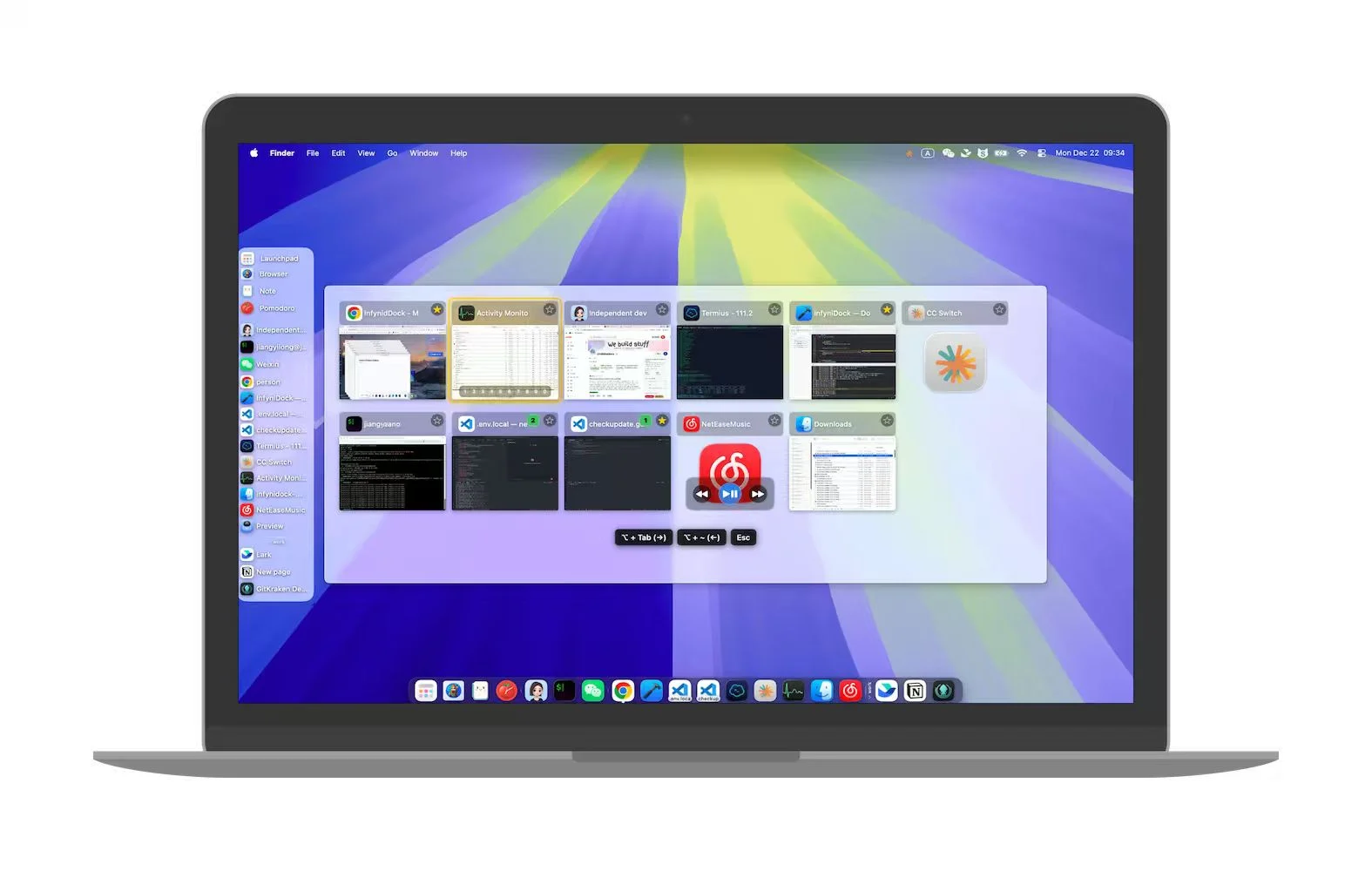
Learn about window switchingFloatDock gives you a quick visual switcher.
Use a shortcut to open a floating selector, scan the available windows, and activate the one you want without traveling back to the Dock.
- Shortcut-driven window switcher
- Window thumbnails and app icons
- Number-key bindings for important windows
Open FloatDock guideSwitch windows with gestures, hotkeys, or mouse wheel.
MacBook users can switch with trackpad gestures. Desktop users can use Option plus mouse wheel or directional shortcuts. The preview helps users know where they are going before activation.
- Left and right window switching
- Down to hide current window
- Up to restore the last hidden window
Configure shortcutsGroup related windows into one task workspace.
A workspace is not just a desktop. It is a saved task context: coding, writing, support, research, design, or operations. One Dock target can bring back a whole group of windows.
- Group windows across apps
- One-click task activation
- Useful for multi-project work
Explore workspacesChoose the Dock style that fits each display.
Use bottom, left, right, semi-hide, or fullscreen Dock styles. Each display can have its own behavior, so a MacBook screen and an external monitor do not need the same layout.
- Semi-hide keeps a visible trigger area
- Fullscreen Dock works well on wide displays
- Per-display behavior
See display workflowsCustomize the Dock and protect sensitive previews.
InfyniDock can show active-window indicators, custom tags, colors, icon effects, and privacy-blurred previews for selected apps when recording demos.
- Active-window indicator
- Custom window tags and colors
- Privacy blur for recordings
Read the FAQ